
I still remember the panic I felt when my laptop screen went black during a video call with my boss. My heart pounded. I had no idea what to do. I frantically pressed every button, unplugged the charger, and even considered throwing the machine out the window. In the end, the battery had simply died, and the charger was not fully plugged into the wall. That embarrassing moment taught me something valuable: most tech problems are not as catastrophic as they seem. They just feel that way when you do not understand the basics.
If you have ever felt intimidated by your own devices, you are not alone. Technology is woven into every part of modern life, yet many people operate from a place of fear rather than confidence. The good news is that you do not need to become a programmer or an IT professional to use technology effectively. You just need a solid grasp of the fundamentals. This guide will walk you through the essential tech basics that can help you navigate your digital world with calm, competence, and a little less frustration.

Why Tech Basics Matter More Than Ever
We live in a time where our phones hold our calendars, our computers store our memories, and our homes are connected to the internet in ways we never imagined. Yet many people still treat technology like a black box, pressing buttons and hoping for the best. That approach creates unnecessary stress and leaves you vulnerable to problems that are easily preventable.
Understanding tech basics is not about memorizing jargon. It is about knowing how your devices work, how to protect your information, and how to solve simple problems without calling for help every time. When you build this foundation, you save money, protect your privacy, and regain a sense of control over the tools you use every day. More importantly, you stop feeling like technology is something that happens to you, and start treating it as something you can work with.
Setting Up Your Home Wi-Fi the Right Way
Your home internet connection is the backbone of your digital life. When it is slow or unreliable, everything becomes frustrating. Yet most people simply plug in their router and never think about it again. A few simple adjustments can dramatically improve your experience.
Place your router in a central, elevated location away from thick walls and metal appliances. The signal radiates outward, so tucking it in a closet or behind a television weakens the connection in other rooms. If your home has multiple floors, the second floor is often the sweet spot for coverage.
Change the default network name and password immediately. Every router ships with a generic admin password that is publicly available online. Leaving it unchanged is like leaving your front door unlocked. Choose a strong Wi-Fi password that is at least twelve characters long, mixing letters, numbers, and symbols. Write it down somewhere safe, not on a sticky note attached to the router.
If you have dead zones in your home, consider a Wi-Fi extender or a mesh network system. These devices spread the signal more evenly and can eliminate the frustration of a video call dropping the moment you walk into the kitchen.
The Non-Negotiable Habit: Software Updates
I used to ignore those little pop-up notifications begging me to update my software. They always seemed to arrive at the worst possible moment, and I assumed they were just annoying interruptions. Then a friend lost an entire folder of photos because of a ransomware attack that targeted an outdated operating system. That changed my mind instantly.
Software updates are not just about adding new features. They patch security vulnerabilities that hackers actively exploit. When you delay updates, you leave your digital front door wide open. The good news is that modern devices make this easy. Enable automatic updates on your computer, phone, and applications. Let the system handle it overnight while you sleep.
For devices that do not update automatically, set a monthly reminder to check for updates. Spend fifteen minutes on the first Sunday of each month updating your phone apps, computer software, and even your router firmware. It is a small investment of time that can prevent massive headaches later.
Passwords: Your First Line of Defense
Passwords are the keys to your digital life, yet most people treat them like an afterthought. Using “password123” or your pet’s name is not just weak, it is an invitation for trouble. Cybercriminals use automated tools that can guess simple passwords in seconds.

Create strong, unique passwords for every important account. A strong password is long, random, and unrelated to your personal life. If memorizing dozens of complex passwords sounds impossible, use a password manager. These tools generate and store secure passwords for you, so you only need to remember one master password. Many reputable options offer free versions for personal use.
Enable two-factor authentication wherever possible. This adds a second layer of security by requiring a code sent to your phone or email in addition to your password. Even if someone steals your password, they cannot access your account without that second code. It takes an extra ten seconds to log in, but it can save you from identity theft, financial fraud, and account hijacking.
Backing Up Your Data: The Rule of Three
There is a saying in tech circles that data does not truly exist unless it exists in three places. I learned this lesson after a hard drive failure wiped out two years of client work. I had no backup. The recovery quote was thousands of dollars, and I ended up losing most of the files permanently.
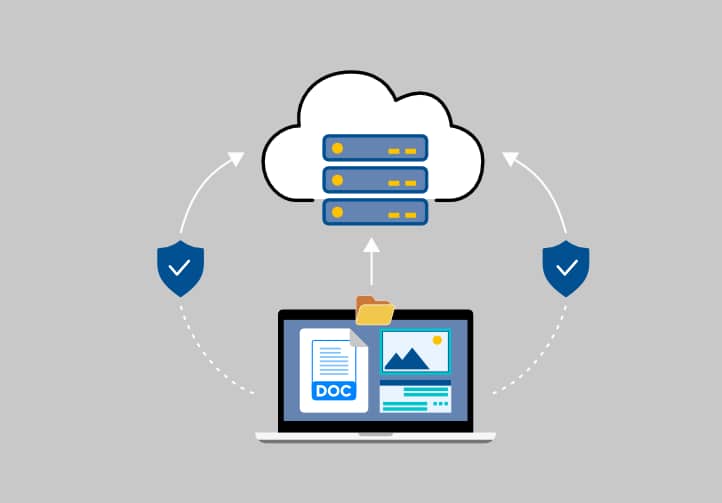
The rule of three is simple. Keep one copy of your important files on your main device, one copy on an external hard drive or USB stick, and one copy in the cloud. Cloud storage services automatically sync your files to remote servers, so even if your house burns down, your photos, documents, and memories remain safe.
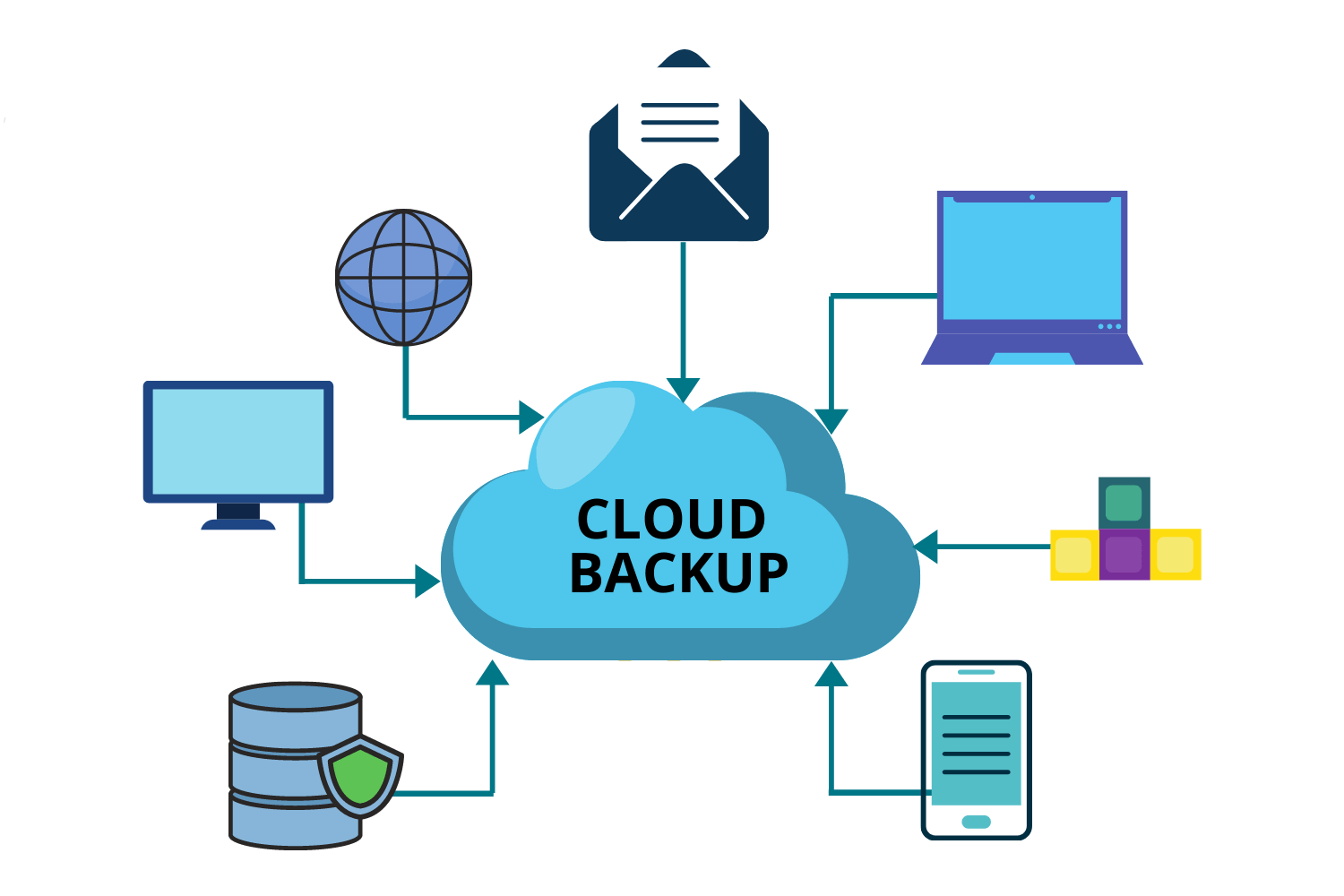
Set your backup to run automatically. Most cloud services and external drives can be configured to back up daily or weekly without any effort from you. The only mistake is assuming you will remember to do it manually. Automate it, test it occasionally by restoring a file, and then forget about it until you need it.
Troubleshooting Common Tech Problems Like a Pro
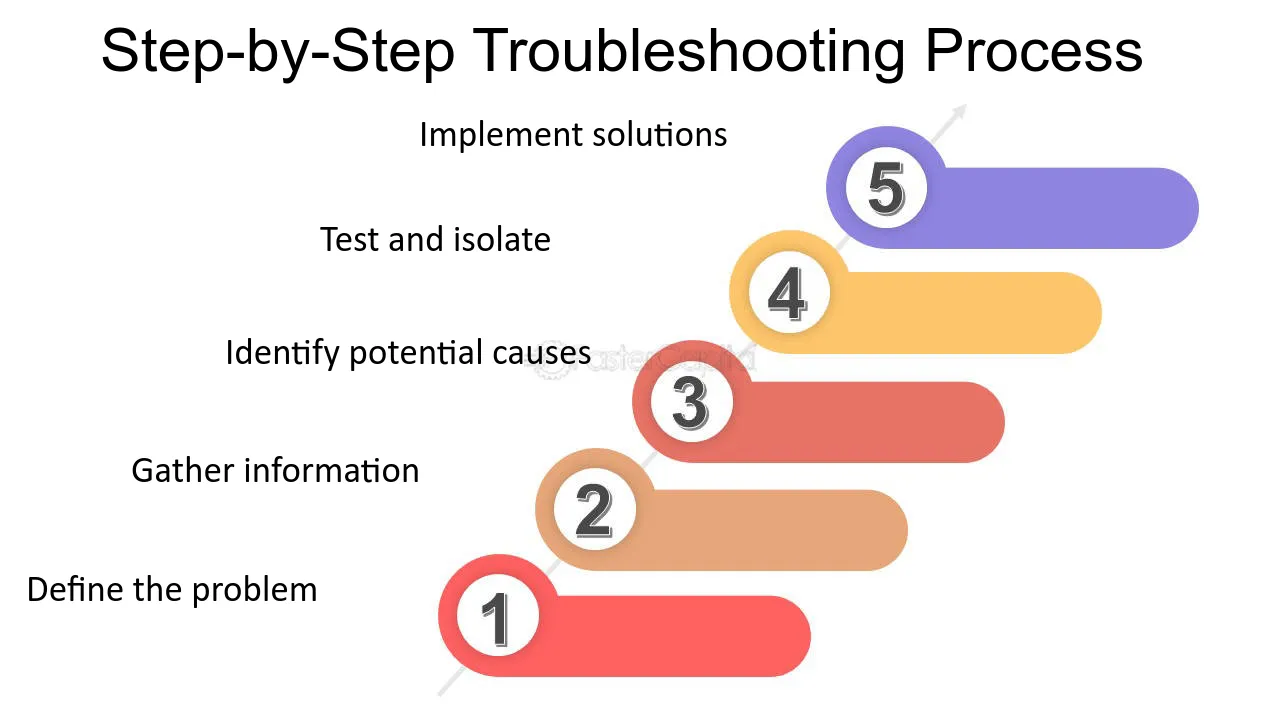
Before you panic and call tech support, try a few basic troubleshooting steps. You would be amazed how many problems resolve with the simplest fixes.
When your computer freezes, do not immediately force a shutdown. Wait sixty seconds. Sometimes the system is simply processing a heavy task, and interrupting it can cause file corruption. If it remains frozen, hold the power button down for ten seconds to force a restart.
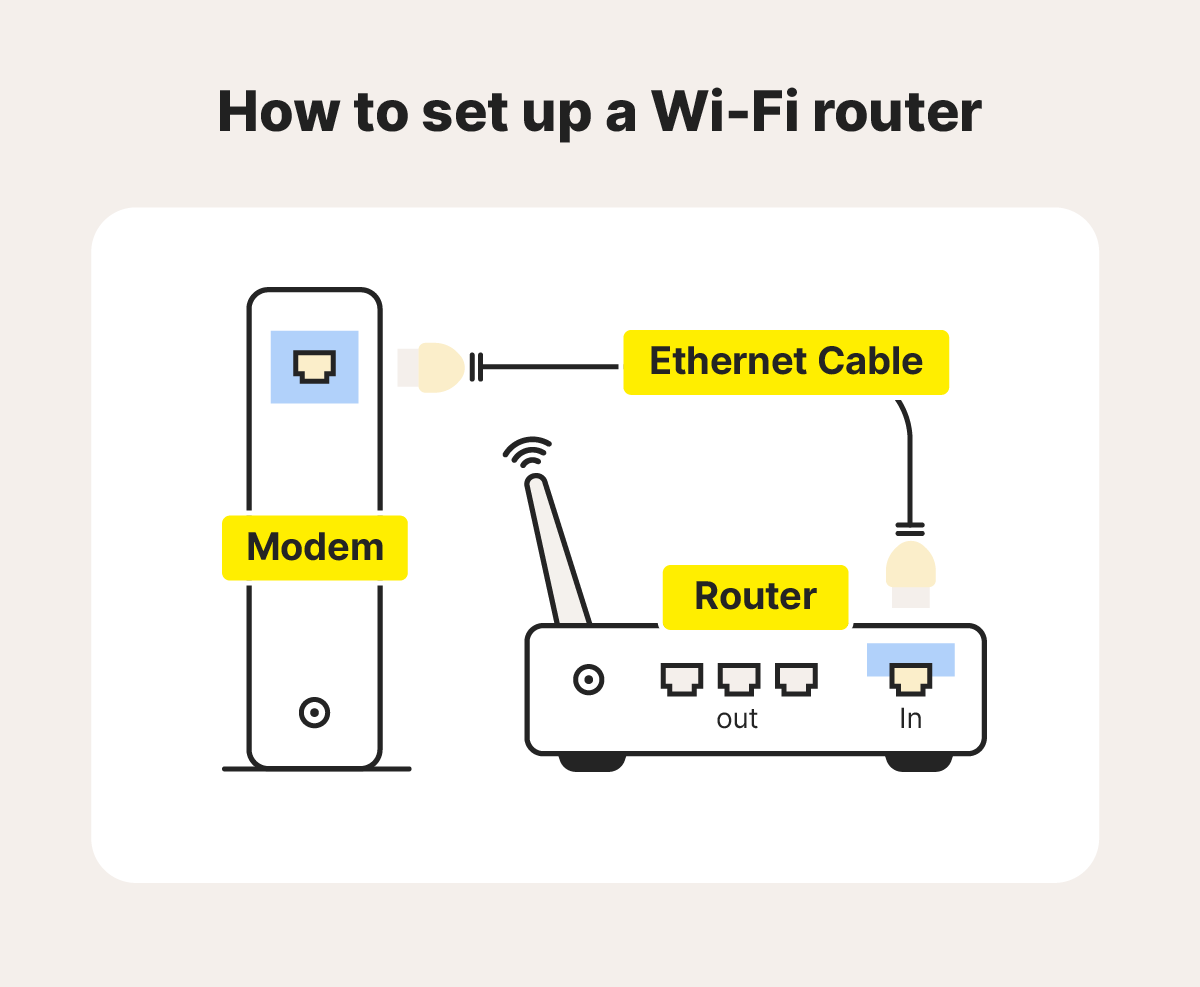
If your internet stops working, follow this sequence before calling your provider. First, check if the issue is with one device or all devices. If it is just your laptop, toggle the Wi-Fi off and on. If every device is affected, unplug your router and modem, wait thirty seconds, and plug them back in. This simple power cycle resolves the majority of connectivity issues.
When an app crashes repeatedly, close it completely and reopen it. On a phone, swipe it away from your recent apps list. On a computer, use the task manager to end the process. If the problem persists, uninstall and reinstall the app. This clears corrupted cache files and often restores normal function.
For a slow computer, check how many programs are running in the background. Close browser tabs you are not using, quit applications you opened and forgot about, and empty your trash or recycle bin. If your storage is nearly full, move old files to an external drive or the cloud. A computer with breathing room runs dramatically faster.
Smartphone Basics Everyone Should Know
Our smartphones are powerful computers in our pockets, yet most people use only a fraction of their capabilities. A few simple habits can make your phone more useful, secure, and longer-lasting.

Start by organizing your home screen. Group similar apps into folders and move the ones you use daily to the bottom row where your thumb naturally rests. Delete apps you have not opened in six months. A cluttered phone creates decision fatigue every time you unlock it.
Manage your notifications aggressively. Every ping, buzz, and banner is a demand for your attention, and most of them are not urgent. Go into your settings and turn off notifications for everything except calls, messages, and perhaps one or two essential apps. Your focus and your battery life will both improve.
Learn your phone’s built-in tools. Screen time trackers can show you exactly how many hours you spend scrolling. Do not disturb modes let you silence everything except emergency contacts. Voice assistants can set reminders, send texts, and answer questions hands-free. These features are already paid for, so you might as well use them.
Protect your phone physically. Use a case and a screen protector. Back up your photos to the cloud automatically so losing your phone does not mean losing your memories. And please, enable the find-my-phone feature. The day you leave your phone in a taxi, you will be grateful you did.
Staying Safe Online Without Becoming Paranoid
The internet is an incredible tool, but it comes with risks. You do not need to become a cybersecurity expert to stay safe. You just need to follow a few common-sense rules.
Never click links in unsolicited emails or text messages, even if they appear to come from a company you trust. Scammers are incredibly skilled at making fake emails look legitimate. When in doubt, open your browser and navigate to the website directly instead of clicking the link.
Be cautious about what you download. Free software, browser extensions, and mobile apps from unknown sources can contain malware that steals your data or slows your device to a crawl. Stick to official app stores and well-known developers.
Public Wi-Fi networks at coffee shops, airports, and hotels are convenient but not secure. Avoid logging into bank accounts or entering credit card information while connected to them. If you must use public Wi-Fi frequently, consider a virtual private network, or VPN, which encrypts your connection and shields your activity from prying eyes.
When to Ask for Help
There is no shame in asking for help. Even tech professionals consult colleagues when they hit a wall. The key is knowing when a problem is beyond your skill level and when you are simply stuck in a frustration loop.
If you have tried the basic troubleshooting steps and the problem persists, it is time to call in support. If the issue involves hardware damage, like a cracked screen or a burning smell from your computer, stop using the device immediately and seek professional help. If you suspect your accounts have been compromised, contact your bank and change all passwords right away.
For everyday questions, do not underestimate the power of a well-worded search. Type your exact problem into a search engine, including the device model and the error message if there is one. Someone, somewhere, has almost certainly had the same issue and posted the solution online. Learning to search effectively is itself a valuable tech skill.
Building Your Digital Confidence One Step at a Time
Technology is not going to slow down. New devices, new apps, and new updates will keep arriving for the rest of your life. The goal is not to know everything. The goal is to build a foundation of confidence that allows you to adapt without panic.
Start with one area that frustrates you most. Maybe it is your Wi-Fi. Maybe it is your passwords. Maybe it is the fear of losing your photos. Fix that one thing this week. Learn it well enough that you could explain it to a friend. Then move on to the next thing.
Over time, these small victories accumulate into genuine competence. The person who once panicked over a black screen becomes the person who calmly restarts a router, updates their software, and backs up their files without a second thought. That transformation does not require genius. It requires patience, curiosity, and the willingness to learn from mistakes.
Tech basics are life basics now. They are the skills that help you work, connect, create, and protect what matters. You do not need to master them overnight. You just need to start.
Frequently Asked Questions
How often should I update my software?
Enable automatic updates whenever possible. For devices that require manual updates, check once per month. Security updates should be installed as soon as they become available.
What makes a password truly strong?
A strong password is at least twelve characters long and includes a mix of uppercase letters, lowercase letters, numbers, and symbols. Avoid using personal information like birthdays or pet names. A password manager can help you create and store complex passwords securely.
Is cloud storage safe for my personal files?
Reputable cloud storage services use encryption to protect your data. While no system is completely immune to breaches, cloud storage is generally safer than keeping your only copy on a single device that could fail or be stolen.
Why is my computer so slow all of a sudden?
Common causes include too many programs running simultaneously, a nearly full hard drive, outdated software, or malware. Try closing unused apps, freeing up storage space, running a security scan, and restarting your computer.
Do I really need a password manager?
If you struggle to remember unique passwords for every account, a password manager is highly recommended. It reduces the temptation to reuse passwords and makes it easy to maintain strong security across all your accounts.
What should I do if I think I have been hacked?
Immediately change your passwords, especially for email and banking accounts. Enable two-factor authentication everywhere possible. Run a full security scan on your devices. Contact your bank if you notice unauthorized transactions.
Are free antivirus programs enough?
For most casual users, the built-in security tools on modern operating systems, combined with safe browsing habits, are sufficient. However, if you frequently download files or visit unfamiliar websites, a reputable paid antivirus may offer additional protection.
How can I make my phone battery last longer?
Reduce screen brightness, turn off unnecessary notifications, close background apps, disable location services for apps that do not need them, and avoid exposing your phone to extreme temperatures. Replacing an aging battery can also restore performance significantly.